Introduction
Every video that goes into one of our courses needs WebVTT captions and a transcript as both are accessibility requirements. They also need to match.
Why the off-the-shelf options didn’t fit
Automatic captioning is easy to find. What’s hard to find is automatic captioning that will respect somebody else’s house style.
Every project comes with its own style guide and its own vocabulary. One client capitalises a term, another doesn’t. Product names, system names and acronyms are spelled a particular way and that spelling has usually been signed off by a subject matter expert. Speech recognition has no way of knowing any of this. It produces a reasonable transcription, and specialist terms can come out wrong or inconsistent.
So the tool had to do three things: transcribe accurately enough to be a starting point, let me correct it to match the project’s style guide, and then produce both output files from that corrected text so they ,matched.
Version one: transcribe, then edit
The first version was straightforward. Drop a media file into the page, it makes an API call to AssemblyAI for transcription, set to UK English, with punctuation and text formatting on. The transcript appears in an editable box. Fix what needs fixing, download the transcript and make the .vtt captions.
I added find-and-replace early, with match-case and whole-word options, because the corrections are overwhelmingly repetitive. A term that’s wrong is wrong every time it appears, twenty or thirty times in a long video. Replace-all turns twenty edits into one.
That version worked, and it saved a lot of time. It also had a serious flaw that took a while to become obvious.
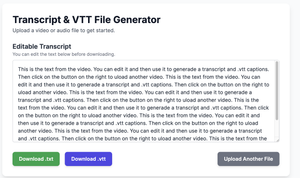
I then added find-and-replace, and replace-all, with match-case and whole-word options, because the corrections are generally repetitive. A term that’s wrong is wrong every time it appears, twenty or thirty times in a long video.
The problem: editing breaks the timing
Change a word and the timings still refer to the original word list. Add a sentence, delete a filler, replace a term with a longer one, and everything downstream of that is anchored to the wrong place. The captions drift, and the further into the video you get, the worse it becomes.
The fix: realign after every edit
The solution was to stop treating the timings as fixed and start treating them as something to be recalculated.
The original timed word list from AssemblyAI is kept as the source of truth for timing. Whenever captions are generated, whatever text is currently in the editor gets aligned back against that list, matching word by word. Where a word has been changed and no longer matches anything, its timing is interpolated from its neighbours.
The matching itself needed more care than I expected. A naive search for the next occurrence of a word goes wrong immediately, because common words repeat constantly — search forward for “it” after an edit and you’ll find the wrong “it” almost every time. So the alignment looks at pairs: it prefers a position where the following word also matches, and only falls back to a bare single-word match if no pair can be found. It searches within a bounded window rather than the whole transcript, which keeps it from wandering off after a large edit.
The result is that the text and the timing are independent. You can change one word or replace the entire script, and the captions still land where the words are actually spoken.
Pasting in an approved transcript
Once alignment was working, a much better workflow became possible.
On a lot of projects the transcript already exists before the video does. It’s been written, reviewed and approved, and its wording is not up for negotiation. Getting a machine to guess at that text, then editing the guess until it matches the approved version, is a slow way of arriving somewhere you already were.
So there’s now an import option: paste the approved transcript in, and it becomes the text. It gets cleaned on the way in — markdown headings, blockquote markers, bullet points and numbered list prefixes are stripped, and the whole thing is collapsed into continuous prose, because approved transcripts usually arrive as formatted documents rather than flat text.
The alignment engine then does exactly what it does for a hand edit: syncs that text to the audio. Approved wording, correct timing, and a transcript and caption file that match because they come from the same text.
Fixing what’s left: the caption editor
Alignment gets the timings close. It doesn’t always get them perfect, and segmentation is a matter of judgement rather than arithmetic.
The captions are broken into sense units rather than fixed-length chunks. There are hard ceilings — fourteen words, ninety characters, seven seconds — but the tool prefers to break at a sentence ending, and failing that at a comma, semicolon or dash once the segment has at least four words in it. Anything that ends up shorter than 700 milliseconds gets padded so it doesn’t flash past, and any overlap that padding creates is cleaned up afterwards.
That’s a good default, but defaults aren’t always right. So the last significant addition was a caption editor: a list of every caption with its text and its in and out times, editable, with the video alongside and the caption overlaid on it as it plays. You can see what a learner will see, and adjust a break point or nudge a timing without touching a text file. One caveat: editing a caption’s text here changes the caption file only. The transcript is not updated, so the two can end up different. Wording changes are better made in the transcript.
This is the bit that changed how much I trust the output. Before, checking captions meant exporting, loading the file into a player, spotting a problem, going back to the source and re-exporting. Now it’s a scroll and a click.
The latest change: teaching it the jargon up front
Everything above is about correcting the transcription after the fact. The most recent addition attacks the problem from the other end, and it has turned out to be the single biggest time saver of the lot.
There’s now a Domain Vocabulary panel on the upload screen, and it does two distinct things — because there are two different ways a specialist term goes wrong.
Word Boost is a list of terms to listen out for: product names, system names, acronyms, people’s names. Supplying them biases recognition toward words it now knows are likely to come up. This addresses the case where the model doesn’t recognise the term at all and substitutes something that sounds vaguely similar. There’s a boost strength setting alongside it, because leaning too hard on a vocabulary list has its own failure mode — the model starts hearing your terms in places they weren’t said.
Custom Spelling handles the other case: the term is heard correctly but written wrong, consistently. You list how it tends to come out and what it should read as instead. Each rule takes several variants mapping to one correct form, which matters because a mishearing is rarely consistent — a name might come back three different ways in the same video, and all three can point at the same correct spelling.
The two mechanisms cover the two failure modes, and between them they remove most of what I used to fix afterwards with replace-all.
The other detail that makes this practical rather than fiddly: the vocabulary is saved in the browser and carries over to the next video automatically. A course is rarely one video. Typing out the same twenty terms for the fourth video in a series would have made the feature not worth using, and the fact that it persists is the difference between a good idea and one that actually gets used.
Importing the style guide
Which raised an obvious question. If a project has a house style, that style is already written down. It arrives as a Word document at the start of the project — the glossary, the approved spellings, the terms that take capitals and the ones that don’t. Retyping it into a web form is transcription of a different kind.
So the newest addition reads the style guide directly. Point it at a .docx or a .txt and it fills in the vocabulary fields in one go, parsing the document in the browser rather than sending it anywhere.
It handles three kinds of line:
- Plain terms — bullets, numbered lists or comma-separated runs — become word boost entries. This is most of a glossary.
- Explicit correction rules, written as
heard as, also heard as -> correct spelling, become custom spelling rules. Several variants can map to one correct form on a single line. - Capitalisation, which is inferred rather than stated. This is the part I like most. Any term whose casing wouldn’t be produced by ordinary title casing — AssemblyAI, VTT, iPhone — automatically gets a spelling rule mapping the lowercase and title-case variants onto the correct form. Ordinary names don’t, because title casing already handles them. It means the capitalisation half of a style guide is enforced without anyone having to write out the rules.
Section headings ending in a colon get skipped, duplicates aren’t re-added, and an import merges with whatever is already saved rather than replacing it — so when a client updates their style guide mid-project, you re-import and only the new material lands.
There’s one ceiling worth knowing about: the word boost list caps at 1,000 terms of up to six words each. That’s more than any style guide I’ve worked with, but a very large glossary would need trimming.
It’s the same insight as the imported transcript, applied earlier in the chain: the more of what I already know gets handed over up front, the less correcting there is afterwards. The style guide and the glossary exist before transcription begins. There was never a good reason to withhold them and then repair the consequences.
A note on keys
One constraint worth being honest about, since this is a browser tool with no server behind it.
Transcription needs an API key, and a page running in a browser can’t keep a secret — anything the page can read, so can anyone holding the file. The tool therefore asks for the key at the start of a session rather than carrying one. It’s held in session storage, which survives a page refresh but is gone when the tab closes, and never written to disk. Uploads are blocked with a clear message if it’s missing.
That’s a slightly worse experience than a key baked into the file, and considerably better than the alternative, which is that everyone who has ever been sent a copy of the tool can bill transcription to your account. If this ever became something more than a personal tool, the right answer is a small server-side proxy holding the key.
How this got built
I built all of this with Claude Code, and the honest description is that it was iterative rather than specified.
I didn’t design the alignment engine. I described a symptom — captions drifting out of sync after I’d edited the transcript — and worked through approaches until one held up. The pair-matching refinement came from testing it on real content and finding the exact failure I described above, where a common word bound to the wrong occurrence.
But the requirements were mine, and they were the decisive part. Knowing that the transcript and captions must match exactly, that approved wording cannot be altered, that different projects have different house styles, and that a caption which flashes past in 200 milliseconds is useless even if it’s technically accurate — none of that comes from the tooling. It comes from having done the job by hand and knowing where it goes wrong.
That’s the division of labour that has worked for me: I specify the problem and judge the output, and the AI handles the middle. It’s a good deal, but it only works if you know what good looks like.
What’s next
[Your call. Per-project vocabulary profiles are the obvious one — the saved glossary is still a single set, so moving between clients means clearing it and importing the other style guide again. Switchable profiles would fit the “different projects, different house styles” problem exactly. Batch processing a series of videos, or a check that flags captions running faster than a comfortable reading speed, would also be natural next steps.]